


|
|
|
|
|
|
|
| |
| 10.02.2006 | Anita Stanhope |
You can paint on a photo or whatever but I am using a plain white layer to begin.
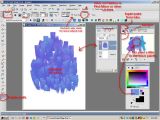
Click on the palette knife at the bottom left of your screen. If the Mixer palette isn't visible, click on Palettes and check it. Then decide on a color. Click on the little paint tube and then make a stroke in the white area. Pick another shade and repeat. Add as many stripes or blobs of color as you like. Click on the little palette knife above your paint samples. Drag your pointer to mix or smudge the paint a little. Don't overdo it. You want the color variations to be visible.
Now, Click on the eyedropper/sampler tool. Select an area of your new paint, adjust size as necessary such as 50. Look at your Foreground paint in the Materials palette. You will see it change as you move your eyedropper. When you have it set, click on the palette knife icon.
Now, paint on the white. Adjust the size of your knife in the toolbar above. If you leave the
clean brush box unchecked, the paint will be 'wetter' and smudge as you apply it. If checked, whenever you change colors normally, they will be clean without residue of previous colors.
On the horizontal bar above your painting, click on PRESETS. Experiment with different palette knife settings, heavier paint, etc.
It is hard to see here, but as you apply your paint with the palette knife, it will look as though
it is scraped across a real canvas as your knife runs out of paint , sort of feathery looking.
That is all there is to it. Go to Layers and Merge Visible or Flatten.
All images are the property of the artist, please don't copy without permission.